
In this article, I will be investigating a pretty simple spyware, following the retired TeleStealer Lab from CyberDefenders.
https://cyberdefenders.org/blueteam-ctf-challenges/telestealer/
Introduction
So what is spyware? Spyware is a type of malicious software that is designed to secretly collect information about a user and their computer activity. It operates in the background without the user’s knowledge or consent. While some spyware may be considered a nuisance, like adware, more malicious forms can cause significant harm by exfiltrating confidential information and leave organizations at risk of data breaches.
Spyware is a pretty blanket term that can cover a wide variety of malicious programs. Some of the most common types of spyware include:
- Infostealers: type of malicious software specifically designed to collect and exfiltrate a wide range of sensitive data from an infected device
- Keyloggers: these programs record every keystroke on an infected computer, a common tactic for stealing passwords, financial details, and other sensitive information
- Adware: while its primary purpose is to display advertisements, it oftentimes collects user data to create targeted ads based on browsing history and interests
- Trojans: disguises itself as a legitimate file or program to trick users into installing it. Once on the system, it can deliver and install other malicious payloads like spyware or ransomware
Setting the Stage
Scenario: At the company, our network team noticed a big increase in the network activity on one of our computers in the last few days. After looking into it, we found out that an employee had downloaded an untrusted software, but they weren’t sure what it was doing. We need you to investigate carefully and find out what it does.
Artifact:
telestealer.exe || malicious executable to be analyzed
What We Know
Just based on the given briefings, I have a few initial ideas. The first one is that there must be some kind of persistence, because the increase in network activity has lasted several days. When dealing with malware, an uptick in network activity is closely associated with worms, which propagate to other systems via the network. However, if you read closely, it specifies that only one computer has had an increase in network traffic. This makes me think that the malware has either connected to an external C2 for further exploitation, or it is exfiltrating data.
Either way, this is an active attack on the company and it is vital that the compromised system be quarantined from the network to prevent further damage. Once it is in a safe, isolated environment, we can begin our root cause analysis on what the malware was, to prevent emerging threats in the future.
Static Analysis
As a quick preamble, before executables are shipped, they get compressed, this process is called packing. Many software developers pack their executable files to reduce file size, protect intellectual property by making reverse engineering more difficult, and sometimes to bypass basic security checks. While packing is a legitimate practice, it’s also a common technique used by malware authors to obscure their malicious code and evade detection by antivirus software.
The first step in our investigation is finding out what this executable was packed with. To do so, we can use tools such as PeStudio or DiE (Detect it Easy).
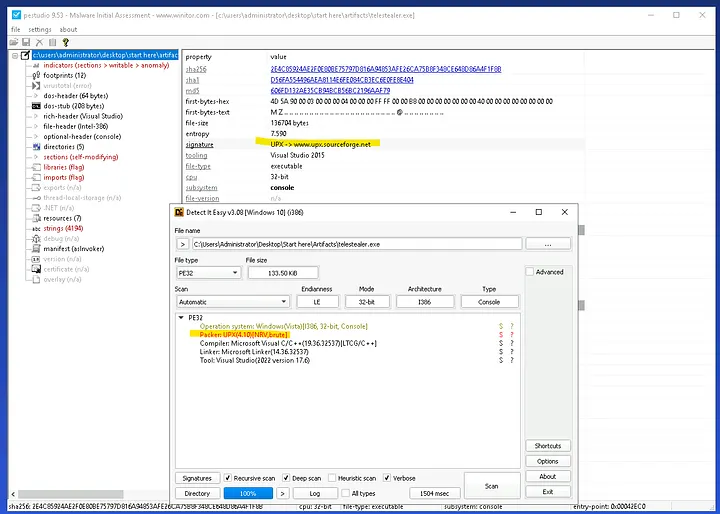
Simply loading the file into PeStudio or DiE allows us to see what program packed the executable. Now that we know it was UPX (Ultimate Packer for eXecutables), we can use UPX to decompress the file.
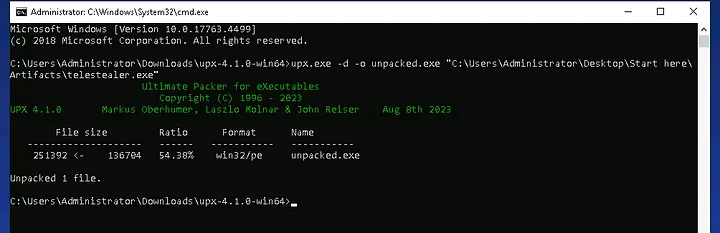
To avoid confusion, I renamed telestealer.exe to unpacked.exe after we decompressed it using UPX, with the following command:
upx.exe -d -o unpacked.exe "C:\Users\Administrator\Desktop\Start here\Artifacts\telestealer.exe"
Now that the malware is decompressed, instead of manually inspecting the contents using something like HxD, we can use a tool called Capa which allows us to check the “capabilities” of the executable. This gives us a high-level overview of what the malware is designed to do. Instead of seeing raw code and data, Capa analyzes the file and identifies specific behaviors, or capabilities.

capa.exe unpacked.exe > capa_output.txt
When running command-line tools that produce a large amount of output, it’s good practice to redirect that output to a text file. This makes it much easier to parse the data and come back to it later, without scrolling up in your command-line. It also serves as a good backup in case you close the window and want to see the output again without redoing everything.
Now, let’s open up capa_output.txt and take a look at what it found.

One thing we haven’t done yet is check the hash of the executable, which we can do now by using a threat intelligence platform like VirusTotal.
Once we search the SHA-256 hash, we can see many hits and 44/72 of the site’s security vendors flag it as malicious.
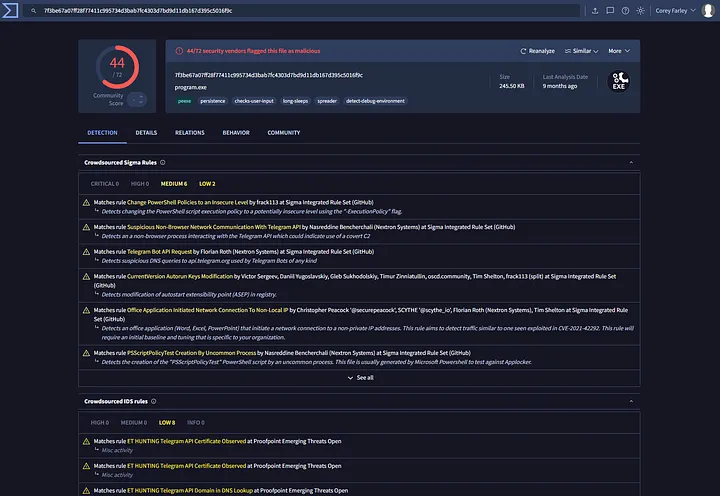
If we head over to the Relations tab, we can find a communication channel that the malware uses to reach out to a Telegram chat. This seems like a data exfiltration tactic, but we’ll circle back to this after further analysis.

Platforms like VirusTotal are immensely helpful when analyzing malware, but we can’t always rely on it. Sometimes malware can be obfuscated or modified from its documented state, like I showcased in my Intro to Malware Analysis article. Or, it could even be a brand new malware on the market and we have to come to conclusions on our own.
The rest of the Capa output shows MITRE ATT&CK tactics & techniques, MITRE MBC objectives & behaviors, and a full list of the program’s capabilities.
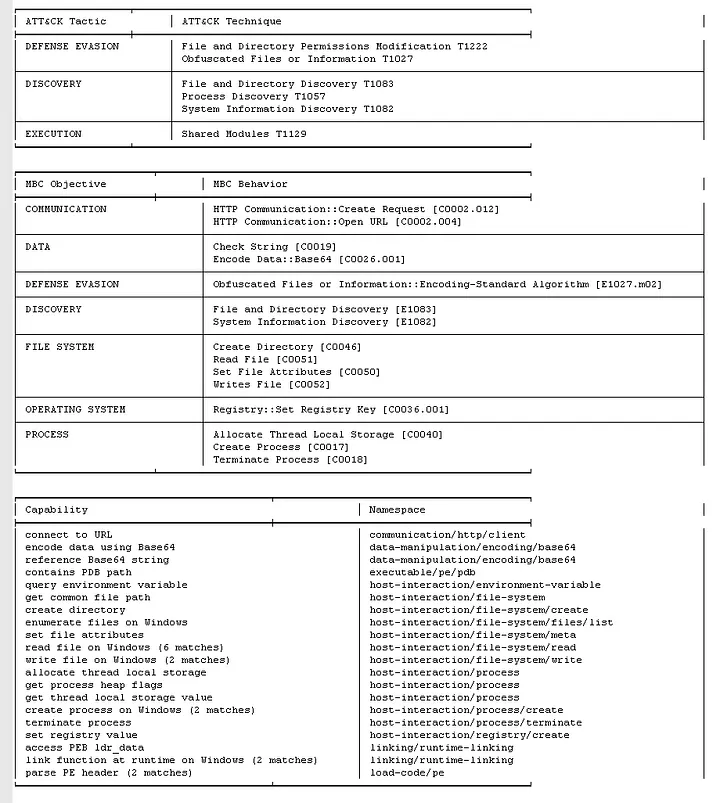
Now we have an idea of what the malware does so we can look out for certain things during the dynamic analysis. The ones that jump out to me are connecting to a URL, setting a registry key, and creating a new process.
These are all red flags for what we discussed previously:
- URL Connection
Highly indicative of C2 beaconing or data exfiltration.
- Setting Registry Key
Classic technique used by malware to achieve persistence, ensuring that the malicious code executes automatically every time the system restarts.
- New Process
Suggests that the malware may be launching a second stage payload.
Now that we’ve gathered enough information during our static analysis and know what to look out for once it executes, we can begin our dynamic analysis.
Dynamic Analysis
Before we run the malware, we want to ensure our system is securely isolated. This is a critical step to prevent the malware from escaping the controlled environment and infecting other systems on the network. I would recommend researching some professional guides on how to do this as I’m still a beginner to this and don’t want to give any bad advice.
Now that we are on a secure machine, we can begin by starting ProcMon in capture mode and executing the malware.
Once we execute it, a blank command-line window opens up and closes by itself shortly after.
After it closes, we can end our capture on ProcMon and filter by “Process Name is telestealer.exe”.
Let’s see what registry key was set to maintain persistence, by searching for “Run”. As I mentioned in my previous article, it is common for malware to use the Run or RunOnce registry keys to create persistence. Either by modifying an existing one or creating a new one, so the program is executed automatically when a user logs into the system.

As we can see from the logs, the malware created the Tele$teal value within the Run key. We can now open Registry Editor and look in the Run key for Tele$teal, which is set to run telestealer.exe every time a user logs in.

We can check that one off the list, and confirm that the malware created persistence by modifying the Run registry key.
Next, let’s see if the malware created any files by filtering for “Operation is CreateFile”.
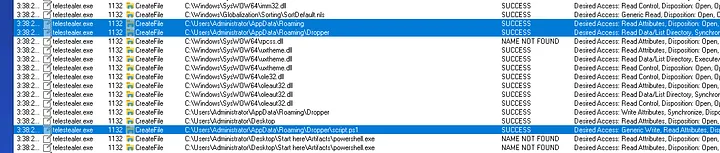
As we can see from the image above, nested within C:\Users\Administrator\AppData\Roaming, a folder called Dropper was created and a PowerShell script called script.ps1 was also created.
A dropper is another term for a type of malicious program designed to install other malware onto a system. It’s often the first step in a multi-stage attack.
Most malware won’t flat out create a folder called “Dropper” to try and evade detection, but now we can confirm that telestealer.exe was a dropper for the PowerShell script, script.ps1. This is a big discovery that changes the focus of our investigation. Now we know that telestealer.exe wasn’t the final threat; it was just the delivery mechanism for the script.
We will circle back to script.ps1, but first, let’s keep looking to see if any other suspicious files were created.
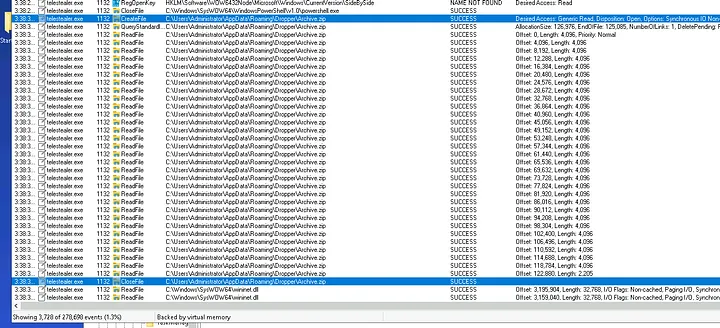
As I kept scrolling, I found a file called Archive.zip that was created. This made me start thinking back to the assumption of that connection being for C2 or data exfiltration, now leaning me more towards data exfiltration.
I turned off the filter for CreateFile and, as you can see from the image above, the abundance of ReadFile calls on Archive.zip confirms that the malware is actively preparing the collected data for exfiltration.
Thinking back to the script.ps1 that we found in the Dropper directory, let’s take a look at that script and see what it actually does, maybe it can help us see what is being stored in the Archive.zip file.
Opening it up with Notepad, this is what we see:

Essentially what this script does is recursively gather all files from the Administrator’s desktop and compress them into Archive.zip.
Now that we know what is being exfiltrated, we need to figure out who it was sent to. If we go back to ProcMon and turn off all the activity filters except Network Activity, we are left with three TCP Operations.

These all relate to the IP of 149[.]154[.]167[.]220. From here, I decided to search it up using an online WhoIs tool, and we see the IP belongs to a Telegram server in the United Kingdom.
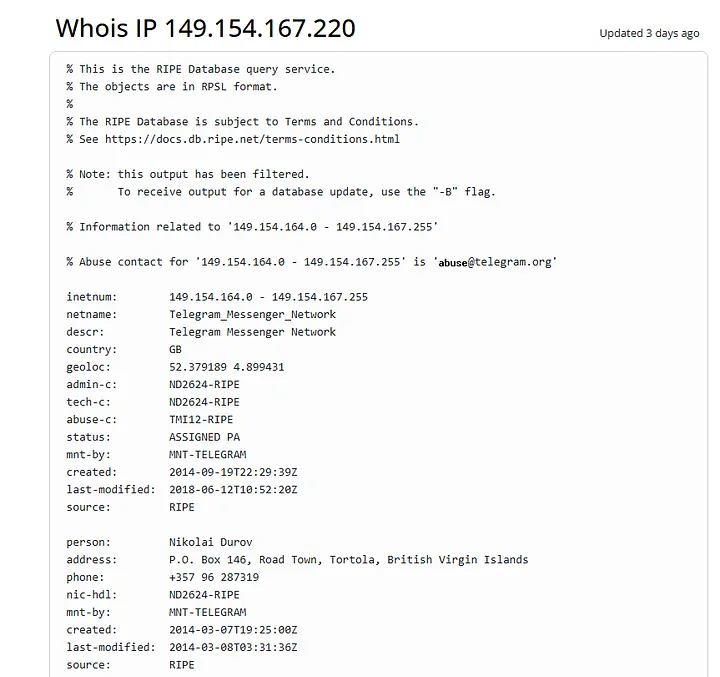
If you remember from way back in our static analysis, we found out that the malware reached out to a Telegram chat URL.

This confirms where the Archive.zip was uploaded to, a chat with the account bot6369451776.
If we didn’t have access to this threat intelligence, here is how we could find out what connection was being made.
Just like the /etc/hosts configuration file on Linux, Windows has one located at C:\Windows\System32\drivers\etc\hosts. We can open this up using Notepad++ and modify it so that api.telegram.org resolves to our local host.
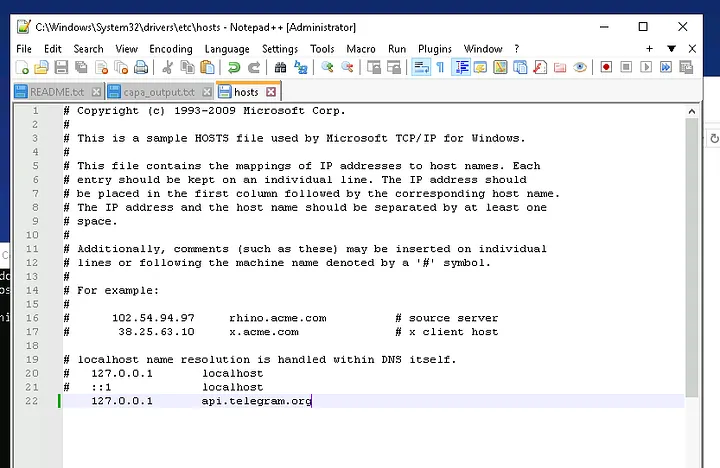
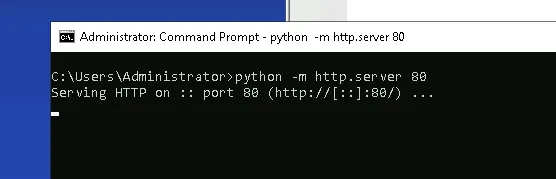
Next, let’s start a web server using Python so we can receive the request that the malware makes. We can do this by running this command in CMD:
python -m http.server 80
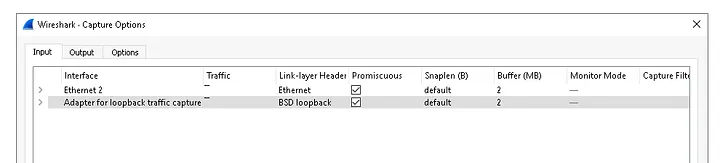
To ensure we capture the data being sent, we can open up Wireshark and set it to capture mode. Make sure it is set to “Adapter for loopback traffic capture” so we can monitor network traffic that is being sent and received by our local machine.
Finally, all we have to do is run telestealer.exe again and both Wireshark and our web server will tell us the URL that the malware attempted to reach out to.
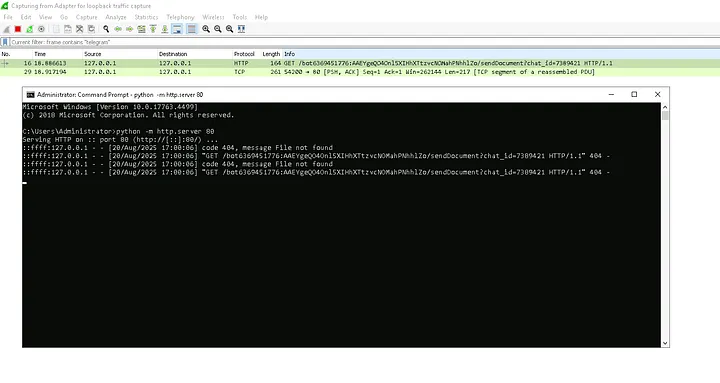
Now we can confirm the Telegram chat that the data was exfiltrated to and use this information to create detection rules and alerts for similar activity in the future.
Lessons Learned
We were able to confirm all three assumptions in our static and dynamic analyses, using many tools to streamline the process, which provided us with a comprehensive understanding of the malware’s full attack chain.
As the lab name suggests, this was a fairly simple infostealer malware that had a multi-stage attack which we were able to investigate.
Utilizing both static and dynamic analysis helped us come to our conclusion and gather all the evidence. Neither method alone would have provided the full picture, but combining the two provided a comprehensive overview of the full attack.
Just a few of my suggestions to harden this system and overall network to prevent similar attacks in the future are:
- Implement an up-to-date behavioral antivirus
A behavioral antivirus goes a step further by monitoring for suspicious actions or “behaviors” on the system rather than relying on software signatures. Although this malware was already documented on threat intelligence platforms like VirusTotal and a basic signature antivirus would be fine, a behavioral one is a step above.
- Implement strong DLP policies
Data Loss Prevention policies are designed to prevent sensitive data from leaving the network. Although no sensitive data was exfiltrated as it was just contained to the Desktop, if the company doesn’t have a good antivirus I’m assuming they are lacking in the DLP department as well.
- Block ingoing and outgoing traffic to Telegram
By configuring the firewalls and network security devices to block all network traffic to and from Telegram’s domains and IP ranges, we can effectively neutralize the data exfiltration. Unless Telegram is mission critical to the company, which is very unlikely, it’s a good idea to block anonymous chat applications altogether as they are used abundantly by bad actors for C2 channels or data exfiltration.
Conclusion
Just like my last article, this one was a blast. Even a month ago, I could never even imagine myself being able to dissect malware and identify what is going on when it executes.
I’m definitely still in my baby steps of malware analysis, but I’ve been learning a lot about the process and what tools help during the analysis. I feel much more confident today than I was yesterday, and that’s really all that matters.
Thank you all for reading and any feedback is greatly appreciated!